
How to Redirect VS Code Output to a Text File
I’ve been writing code for over a decade now, and if there’s one thing that still drives me nuts it’s staring at a terminal full of scrolling logs, trying to spot a single error message after the fact. I used to take screenshots. Seriously. Then I learned the simple but ridiculously useful trick of redirecting VS Code output to a text file.
Look—whether you’re debugging a nasty runtime error, saving build logs to share with a teammate, or just building a personal log of how many times you accidentally pushed to `main`—capturing that output is a lifesaver. And the best part? You don’t need a single extension for the basics. Let me walk you through the real-world ways to do it.
Why You’d Even Want to Redirect VS Code Output
Let’s be honest: the integrated terminal in VS Code is great, but it’s not great forever. Once you close that tab or restart the editor, all that glorious history vanishes. Poof. Gone. That’s a problem when you’re trying to troubleshoot a build that failed six minutes ago.
Redirecting output means you’re saving everything to a file that persists. It’s the difference between “I think I saw the error” and “Here, let me open the log.” It’s a big deal. You can grep through saved files later, attach them to a bug report, or just keep a clean audit trail.
There’s also the standard output vs. standard error distinction. If you only capture stdout, you might miss those juicy error messages. I’ll show you how to grab both. Honestly? Once you get the hang of this, you’ll wonder how you survived without it.
The Simplest Method: Using Terminal Redirection Operators
Capturing Output with the `>` Operator
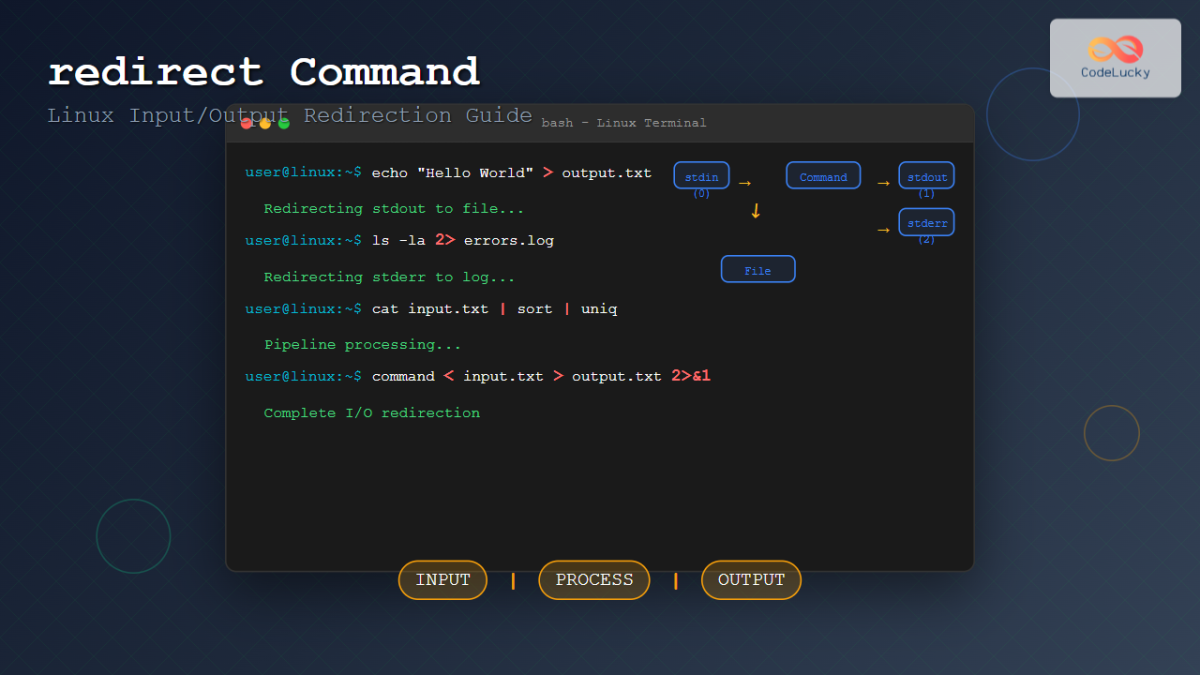
This is the bread and butter. If you run a command in the VS Code integrated terminal and slap a `>` on the end, everything that normally prints to screen gets sent to a file instead. It’s dead simple.
node my-script.js > output.txt
Run that, and you’ll see no output in the terminal. It all went to `output.txt` in your current working directory. Open that file in another tab, and boom—there’s your log. One caveat: `>` overwrites the file every single time. So if you run it twice, only the second run’s output survives.
But what about errors? If your script crashes, the error message might not show up in that file. That’s because errors typically go to stderr, not stdout. To grab everything, you’ll need to redirect stderr as well. Let me cover that next.
Appending to a File Instead of Overwriting
Sometimes you want to keep a running history. Maybe you’re running a server and want to see all the log entries from the last week. That’s where the `>>` operator comes in. It appends to the end of the file instead of blowing away the old content.
npm run dev >> server-log.txt
Every time you run that, new output gets tacked on to `server-log.txt`. If the file doesn’t exist, `>>` creates it. Perfect for long-running tasks or repeated tests. Just be careful—this file can get huge fast. I’ve accidentally created a 2GB log file more than once. Learn from my mistakes.
Dealing with Standard Error (stderr) Like a Pro
Redirecting stderr to the Same File
Here’s where most beginners get tripped up. You run:
python app.py > output.txt
And then you check `output.txt` and there’s nothing there. The script silently failed. Why? Because the error was printed to stderr, and you only redirected stdout. The fix is easy—use `2>&1` to merge stderr into stdout:
python app.py > output.txt 2>&1
Let me translate that geek-speak: `2` is stderr’s file descriptor, `1` is stdout’s. So `2>&1` says “take stderr and point it to wherever stdout is going.” Now both streams end up in `output.txt`. It’s the universal catch-all for terminal output.
Separating stdout and stderr into Two Different Files
Sometimes you want the clean output in one file and the error logs in another. I do this when I’m running a cron job or a build pipeline that generates tons of noise. Here’s the syntax:
node build.js > success.log 2> error.log
`>` sends stdout to `success.log`, and `2>` sends stderr to `error.log`. Two separate files, no mixing. You can review `error.log` later and ignore `success.log` if everything ran fine. It’s a small habit that makes debugging much, much faster.
Using the VS Code Debug Console Output
Redirecting Debug Console Messages to a File
The debug console in VS Code is a different beast. It doesn’t automatically obey the same terminal redirection rules because it’s not a terminal—it’s a separate output channel. So if you’re debugging a Node or Python app and you want to capture `console.log` messages, the `>` trick won’t work out of the box.
Instead, you need to configure your launch.json. Add a `"outputCapture"` property to your debug configuration. Set it to `"std"`, and VS Code will route debug console output through the terminal, where you can then redirect it:
json { "version": "0.2.0", "configurations": [ { "type": "node", "request": "launch", "name": "Redirect Debug Output", "program": "${workspaceFolder}/app.js", "outputCapture": "std" } ] }
Once that’s set, run the debugger from the terminal using a task or directly. The output will now respect redirection. It’s an extra step, but it’s the only reliable way I’ve found to capture debug console output into a file.
Automating the Process with Tasks.json
Here’s a pro tip: create a VS Code task that runs your debug command and redirects output automatically. Open `.vscode/tasks.json` and define a task with the shell command including redirection:
json { "version": "2.0.0", "tasks": [ { "label": "Run with Log", "type": "shell", "command": "node ${file} > ${workspaceFolder}/run-${fileBasenameNoExtension}.log 2>&1", "problemMatcher": [] } ] }
Now you can press `Ctrl+Shift+B` (or your custom shortcut) and it runs your current file and saves the output to a log file named after the script. No more typing long commands. I use this every single day.
Advanced Techniques for Long-Running Processes
Using `tee` to See Output and Save It Simultaneously
Sometimes you want to watch the output in the terminal and save it to a file. That’s where the `tee` command comes in. It splits the stream—one copy goes to the file, the other to the screen.
npm start | tee -a build-log.txt
The `-a` flag appends instead of overwriting. Now you see real-time progress in the terminal, and a copy gets written to `build-log.txt`. It’s perfect for monitoring a deployment script while also keeping a record.
One word of caution: `tee` buffers output by default in some shells. If you need real-time lines written to the file (and not in chunky blocks), you might need to disable buffering. For Python, use `-u` flag. For Node, set `NODE_ENV=development` or pipe through `unbuffer`.
Running a Background Process and Logging Output
If you’re starting a server that runs indefinitely—like a Node Express app or a Python Flask server—you don’t want it to occupy the terminal forever. You can background the process and redirect output:
nohup python server.py > server.log 2>&1 &
The `nohup` command prevents the process from being killed when the terminal closes. The `&` at the end puts it in the background. Now you can close VS Code, come back later, and `server.log` will have everything the server printed while you were gone.
I’ve run production servers this way during development. It’s not fancy, but it works. Just remember to check the log periodically or set up a log rotation, or you’ll end up with a file that crashes your editor when you open it.
Common Questions About Redirecting VS Code Output to a Text File
Does this work for the OUTPUT panel (like build tasks or extensions)?
The built-in `> ` and `>> ` operators only work in the integrated terminal. The OUTPUT panel (where you see build task results or extension logs) is a different system. You can’t directly redirect it with shell commands. However, you can often copy its contents manually by right-clicking and selecting “Copy All.” Some extensions also offer an “Export” feature.
Can I redirect output from the terminal without modifying the command every time?
Yes. You can set the `terminal.integrated.env.${platform}` property in your VS Code settings to prepend a redirect to every command. But honestly, that’s overkill for most people. A cleaner approach is to use a task (like I showed earlier) or create an alias in your shell profile. For example, in `.bashrc` or `.zshrc`: `alias runlog=’node $1 > $1.log 2>&1’`.
What if the output file gets too large? How do I manage it?
Good question. You can use the `split` command on Unix or `Get-Content -Tail` on Windows to check only the last N lines. Better yet, incorporate log rotation in your script. For Node, the `winston` library handles this beautifully. For simple use cases, just delete old log files periodically. I have a cron job that removes files older than 7 days.
Does redirecting output affect performance?
Not noticeably for most tasks. Writing to a file is slightly slower than writing to the screen, but we’re talking milliseconds. The only real overhead is disk I/O—if you’re logging thousands of lines per second (like a frantic loop), you might see a hit. In those cases, consider buffering in memory and flushing periodically.
Can I redirect output from within a VS Code extension I’m developing?
For extension development, you have access to the `OutputChannel` API, which includes a method `appendLine`. You can also get the channel’s content via `textEditor` and then write it to a file manually. But if you just want to log for debugging, consider using the `console` object with a custom transport. The `> ` trick won’t work inside an extension host process.