
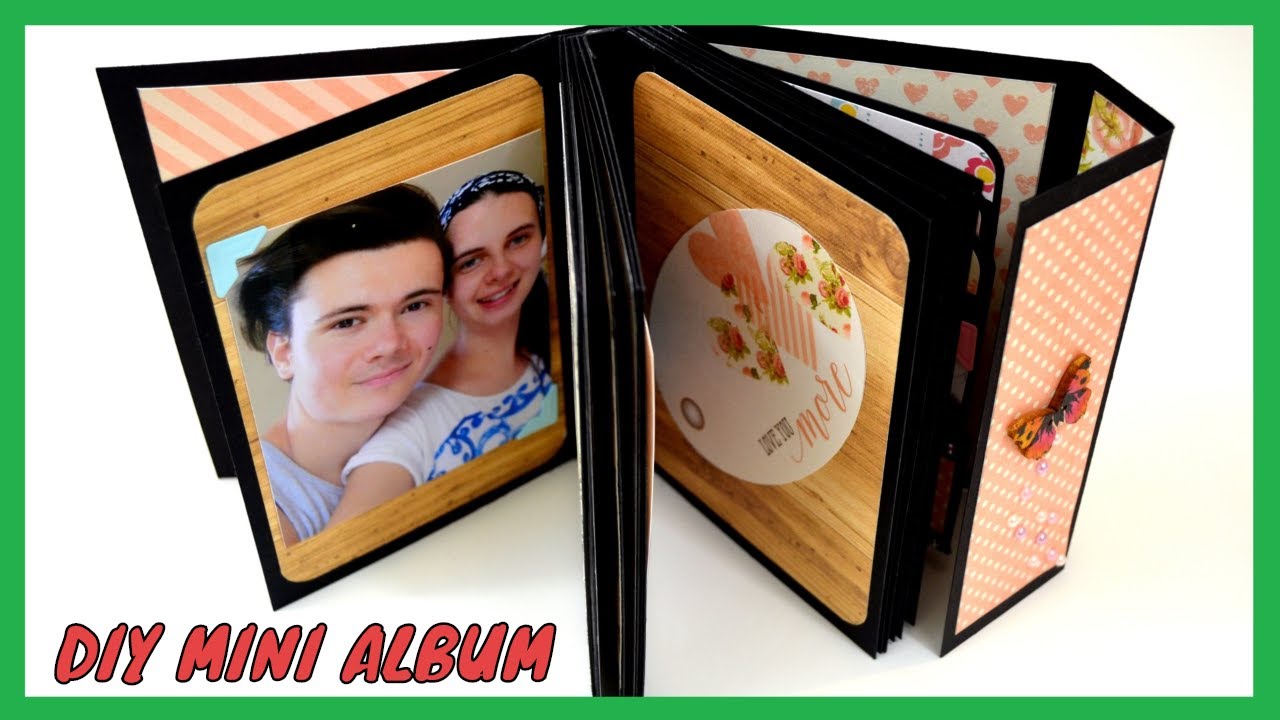
How to Resize Digital Photos for Mini Scrapbook Albums
Ever spent hours picking the perfect snapshot for a 4x6 mini album, only to print it and find the faces look like a pixelated mess? Or worse, the photo gets cropped in a way that cuts off half your grandma's smile. You're not alone. For over a decade, I've watched scrapbookers tear their hair out over this. The problem isn't the photo itself—it's that nobody taught them how to resize digital photos correctly for those tiny, precious pages. Let's fix that.
Look—, mini albums are a different beast. A 6x6 or 4x4 canvas doesn't forgive mistakes the way a 12x12 layout does. One wrong click and your high-resolution pride and joy turns into a blurry disaster. The good news? Once you understand the interplay between photo resizing and print dimensions, it's actually dead simple. Honestly? It's about three numbers and one golden rule.
Getting the Numbers Right (Aspect Ratio & DPI)
This is where most people trip up. They think bigger is always better. Not true. A massive image squished into a tiny square doesn't just shrink—it distorts. The first thing you need to know is your album's aspect ratio. If your mini scrapbook page is 4x4, you need a square photo. If it's 4x6, you need a 2:3 ratio. Trying to jam a 4x6 rectangle into a 4x4 square without adjusting? That's how you lose content. Seriously. Don't do it.
Then we have DPI—dots per inch. This is the magic number that determines whether your digital photo resizing effort looks crisp or muddy. For any mini album, you want 300 DPI. Period. Anything less, and you're gambling with quality. Let me break it down: a 4x6 print at 300 DPI means the image file needs to be 1200 pixels by 1800 pixels. Do the math: 4 inches times 300, then 6 inches times 300. If your original image falls short of those pixel dimensions, you're going to have to either scale down or get creative. It's a big deal.
Why Your 3000px Image Isn't Working
You might be sitting there thinking, “But I have a 3000 pixel wide image! That should be huge!” And you'd be right—if you were making a poster. For a 4x6 mini album, that image is overkill. More importantly, the aspect ratio of your camera's sensor (usually 3:2 or 4:3) rarely matches the square or exact dimensions of a mini album. So when you just hit “print” without resizing, the software tries to force a fit. It either stretches the image or, more commonly, it crops it in a random way that ruins your composition.
The fix is to resize digital photos to a specific pixel dimension before you even think about hitting print. Open your photo editor, check the pixel dimensions, and then adjust them to match your target print size at 300 DPI. For a 2x2 mini square, you need 600x600 pixels. For a 3x4, that's 900x1200. This preemptive step ensures zero surprises. No guessing, no wasted paper. It's a two-minute operation that saves a bundle of frustration.
The Sacred Rule of 300 DPI
I cannot overstate this. I've seen crafters use 72 DPI images from the web and wonder why their prints look like a childhood art project. 72 DPI is for screens. 300 DPI is for paper. When you adjust image size for a mini scrapbook, you must enforce that 300 DPI standard. If your image is 72 DPI, you can try to increase it—but this creates a lie. You're just stretching the existing pixels. It won't add detail. The result is a soft, fuzzy image. No bueno.
Here's the trick: if your original image doesn't have enough resolution to hit 300 DPI at the final print size, you have two choices. First, print it smaller. A 1000 pixel wide image at 300 DPI is about 3.3 inches—perfect for a 3x4 mini page. Second, accept the quality loss and use the image as a background element or a blurred detail. But never, ever try to force a low-res image into a high-res print. It'll break your heart. And your album.
The Tools of the Trade (And Why Paint Won't Cut It)
You need real software. Microsoft Paint is like using a butter knife to perform surgery—possible in theory, but the results are ugly. For reliable resizing digital photos, you want something that respects aspect ratios and gives you control over DPI. I've been using the same three tools for years. Each one is free or cheap, and each one handles the job with surgical precision.
First, there's IrfanView. It's ancient, it looks like it's from 1998, and it is the single fastest tool for batch processing I've ever used. Second, GIMP. It's free, powerful, and has a learning curve steeper than a mountain trail—but it gives you pro-level control over aspect ratio and DPI. Third, the built-in Photos app on Windows or Preview on Mac. Yes, they can actually do this if you know the right menu. No, they don't advertise it well. You have to dig into the “export” or “adjust size” option.
My Go-To Method (Fast, Free, Foolproof)
I'm going to walk you through my personal workflow using GIMP, because it's what I use for every mini album project. Open the image. Go to Image > Scale Image. In the dialog box, you'll see fields for Width, Height, and Resolution. First, set the Resolution to 300 pixels/in. Now, here's the critical part: look at the chain link icon next to the width and height fields. Click it to lock the aspect ratio. This keeps the photo from looking squished or stretched. Then, type in your target width based on your mini album size.
For example, if you're building a 5x5 mini album and want a full-page photo, type 1500 pixels for the width. The height will auto-calculate. Hit Scale. Done. You can now save this as a new file—NEVER overwrite your original. Why? Because once you shrink a photo, you can't un-shrink it. If you mess up, you need the original to start again. Do I sound like I'm repeating myself? Good. Because I've seen too many scrappers cry over lost original files.
The Crop vs. Scale Dilemma
Occasionally, your photo has the right pixel count but the wrong shape. That's when you need to crop, not just resize digital photos. Cropping removes edges to fit a specific aspect ratio. Scaling keeps the whole image but changes its size. Which one you choose depends on the photo. If the subject is dead center and the background is worthless, crop it to the album size. If you love the entire scene, you might need to scale it and accept some white space or add a mat.
I always recommend cropping first, then scaling. That way, you control exactly what ends up on the page. The alternative—scaling first and then trying to crop—usually forces tricky compromises. Plus, when you crop first, you can make sure the focal point lands in a visually pleasing spot within the square or rectangle. Mini albums are all about tight framing. A well-cropped photo tells a story better than a wide shot that contains twenty people and a dog in the background. Trust me on this.
Advanced Tips for Tiny Spaces
Once you master the basics, you can start having fun with your photo resizing workflows. For instance, sometimes you want to fit multiple photos on one tiny page. That means you need to resize each image to quarter-page dimensions while maintaining separate resolution standards. I do this all the time for pocket-style mini albums where I need four 2x3 prints on a single 4x6 page. The math: each image needs to be 600x900 pixels at 300 DPI. If you batch resize them before assembling, the collage looks seamless.
Another pro trick is using “intelligent resizing” algorithms. In Photoshop or GIMP, you have options like “Cubic” or “Lanczos” interpolation when you scale. These are fancy terms for how the software guesses the colors of new pixels. For shrinking images (which is what you're doing for mini albums), Lanczos gives the sharpest results. It's slightly slower, but for a single photo, it takes two seconds. For eighty photos, it takes maybe a minute. Worth every second.
Batch Resizing for Multiple Prints
Let's say you have a vacation’s worth of photos, and you want all of them for a mini album. Resizing one by one is tedious. I get it. That's where batch processing saves your sanity. In IrfanView, you can load a folder of images, go to File > Batch Conversion, and set your output size to exactly the pixel dimensions you need. You can also set the DPI to 300 in the advanced options. Hit Run, and the software churns through every image while you grab a coffee. Seriously—it's that easy.
Batch resizing digital photos also ensures uniformity. Every print will match in size and quality. No more guessing “Is this one the right size?” or “Why does this one look slightly bigger?”. It's a lifesaver for mass production albums like wedding guest books or mini thank-you albums. I once processed 200 photos in under five minutes for a mini book. The result? Perfect. The client? Thrilled. The effort? Near zero.
Quality Checks Before You Hit Print
Even professionals make mistakes. Before you send your resized images to the printer, do a quick double-check. Open the saved image file. Look at its properties—on Windows, right-click and hit Details. You should see the dimensions match your target (e.g., 1200x1800) and the DPI read 300. If it says 72, you made a mistake. Go back and fix it. This is your last line of defense against a wasted afternoon.
Visual check matters too. Zoom to 100% on your screen. Does the image resize look sharp? Are the edges of your subject clean or are they showing jagged artifacts? If it looks good on screen at 100%, it will look good on paper. If it looks soft, either your original was too small or your interpolation algorithm was too weak. Try again with a higher quality setting. Don't settle. Mini albums are intimate, tactile experiences. A blurry photo kills that magic.
Common Questions About Resizing Digital Photos for Mini Scrapbook Albums
What is the best DPI for mini scrapbook prints?
300 DPI is the industry standard for high-quality prints in any size, especially mini albums. Never go below 200 DPI if you can help it. For tiny prints like 2x2 or 1x1 inch squares, 300 DPI ensures the details are crisp. Going lower results in visible pixelation when viewed up close. Stick to 300 and you'll never regret it.
Can I use a smartphone photo for a mini scrapbook album?
Absolutely, but you need to check the resolution first. Modern smartphone cameras shoot at high megapixels, so they usually have enough data. However, because phone cameras often use a different aspect ratio (like 16:9 or 4:3), you'll likely need to crop to fit your mini album shape. Export at full resolution from your phone, then follow the same resizing steps on your computer.
How do I avoid losing quality when I resize photos smaller?
Shrinking an image actually preserves quality if done correctly. The key is to avoid oversharpening or using a low-quality interpolation algorithm. Use Lanczos or Bicubic (sharper) in your software. Also, always keep your original file untouched. That way, you can re-export a different size later without losing the source. If you're working with JPEGs, avoid repeated saves to prevent degradation.
Should I resize before or after adding text or decorations?
Resize the photo first, then add text and decorations in your scrapbooking software or on the printed page. If you add text to a large photo and then shrink it, the text becomes tiny and unreadable. If you add text to a photo that's already at the correct digital photo resizing dimensions, you can scale the text appropriately. Always finalize the image dimensions before you start any embellishment.
Do I need special software for batch resizing?
Not necessarily. Windows Photos and Mac Preview support basic batch photo resizing, but they offer less control over DPI and interpolation. For serious batch work, I recommend IrfanView (free) or FastStone Image Viewer (free for personal use). These tools let you set precise pixel dimensions, DPI, and output formats across hundreds of images in seconds.