
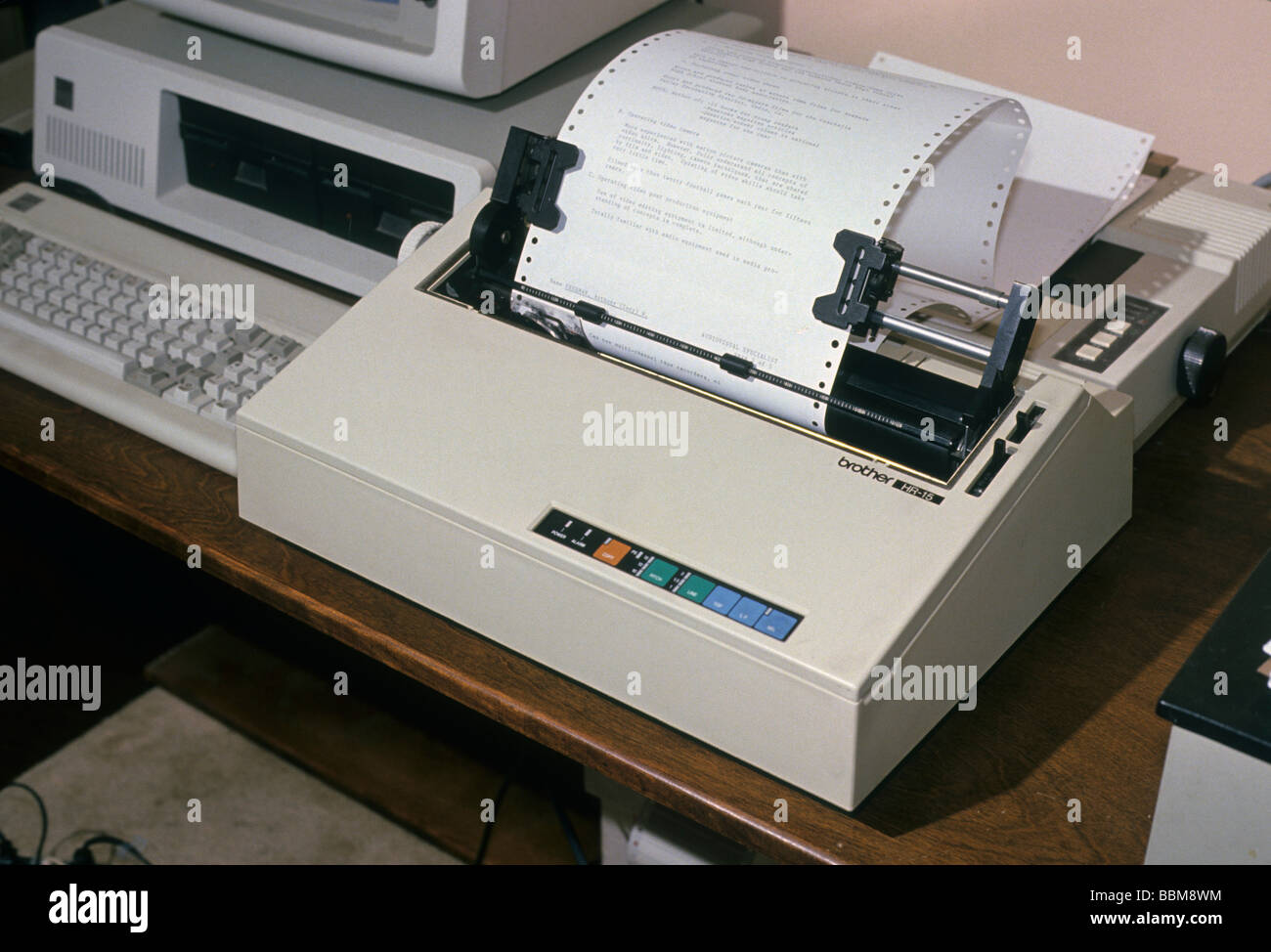
Why a Dot Matrix Printer Won’t Hold the SEL Light
You’re staring at that little green (or sometimes amber) light labeled SEL on your trusty old dot matrix printer. It flickers, blinks, or just refuses to stay lit. The printer won’t go online. Nothing prints. And you’re about two seconds away from giving it a good, solid thump. Hold that thought.
I’ve spent over a decade elbow-deep in these beasts—Epson, Okidata, Star, you name it. And I can tell you: the SEL light (short for Select, or On-Line on some models) is your printer’s way of saying, “I’m ready to accept data.” When it won’t hold, something is blocking that readiness. It’s almost never a ghost in the machine. Usually, it’s something stupid-simple. Seriously.
Look—before you call in a tech or start buying replacement boards, let’s walk through the real-world reasons why a dot matrix printer won’t hold the SEL light. I’ll give you the fixes that actually work, in the order I’d check them. Got a screwdriver? Good. Let’s dig in.
The Usual Suspects: Why the SEL Light Refuses to Stay On
The SEL light is a single bit of status. It’s lit when the printer is online and ready to receive from the computer. It goes off when the printer detects a fault condition. Those conditions are surprisingly few. Think of them as the printer’s personal pet peeves: paper problems, ribbon issues, cover not closed, or a data cable that’s throwing a tantrum.
I’ve seen techs spend hours swapping firmware when all they needed was to push the paper down a quarter inch. Don’t be that guy. Start simple.
Paper Out or Paper Jam? Check This First
Almost 70% of the time, a dot matrix printer that won’t hold the SEL light has a paper issue. The printer has a mechanical arm or sensor that detects the presence of paper. If that sensor is blocked, broken, or just dusty, the printer thinks there’s no paper. So it drops offline. SEL light goes dark.
Here’s what to check:
- Paper isn’t loaded correctly. The leading edge must pass the platen (the roller) and trigger the bail arm or the paper-end lever. On many Okidata models, that lever is a thin metal tab. If it’s stuck, the printer won’t see paper.
- Paper jams inside the tractor feed. Even a tiny fold can confuse the sensor. Open the rear access, pull the paper backward slowly, and reset.
- Dust or paper dust on the sensor. Compressed air works wonders. Spray from the inside and the outside. One shop I worked at kept a dedicated can of air just for SEL issues.
- Paper too thick or too thin. Multi-part forms sometimes don’t trigger the sensor if the stack is too light. Try adding a backing sheet.
If the printer beeps or the SEL light blinks rapidly when you try to go online, that’s an urgent fault. Usually paper jam. Open the top and clear everything. Honestly? Sometimes you just need to remove all paper, hold the Form Feed button, and reload. Re-initialize the printer’s idea of reality.
The Ribbon: An Overlooked Culprit
Here’s a weird one: a jammed or improperly installed ribbon can kill the SEL light. Wait, really? Yes. On many dot matrix printers, the ribbon cartridge has a flag or a lever that tells the printer “ribbon is present and moving.” If the ribbon is bunched up, not advancing, or sitting crooked, the printer halts. It thinks the print head might overheat or tear the ribbon.
I once spent an hour troubleshooting an Epson FX-890 that kept dropping offline. The ribbon was twisted inside the cartridge. No visible jam, no error code—just a blinking SEL. Replaced the ribbon, problem solved. Not kidding.
So before you go any deeper, pop the ribbon out, inspect it, and re-seat it. If the ribbon is old, dry, or has a rip, replace it. A bad ribbon can also cause the print head to stall, which triggers a fault.
Cover Open? It’s Not Always Obvious
Many dot matrix printers have a microswitch under the top cover. If that switch isn’t pressed, the printer won’t go online. But here’s the trick: the switch can wear out, or the cover might not sit flush due to a loose hinge or a piece of paper stuck under the lip.
I’ve seen cases where the cover is down, but a small paper scrap is keeping the switch from being fully depressed. The printer stays offline. Tap the cover down firmly. Listen for a click. If you hear nothing, the switch might be dead. You can test it with a multimeter (continuity mode) or just jumper the two wires for a quick diagnostic. But don’t leave it jumpered—you’ll lose the safety interlock.
Electrical Gremlins: Cable, Main Board, and Fuse Issues
If paper, ribbon, and cover are all fine, now we move into the electrical side. Don’t panic—still not a major repair yet.
The Data Cable: More Trouble Than You’d Think
Parallel cables, USB adapters, even serial connections—they can cause the SEL light to drop if the printer detects a communication error. Here’s the deal: when the printer receives a corrupt signal or loses the handshake, it sometimes thinks the computer disconnected, so it goes offline.
Check these:
- Remove the data cable completely. Turn the printer off, remove the cable, then turn it on. If the SEL light stays on steady (or comes on when you press the online button), the problem is the cable or the computer’s port. If the light still won’t hold, it’s the printer.
- Try a different cable. Old parallel cables can go intermittent. USB-to-parallel adapters are notorious for flaky handshake signals. Use a cable that’s certified for the printer’s speed.
- Check the connector pins. Bent or broken pins on the printer’s parallel port can cause the printer to receive garbage data. That garbage can trigger an error state.
I once had a customer whose dot matrix printer would work for ten minutes, then drop the SEL. Turned out the parallel cable was routed next to a fluorescent light ballast. The electromagnetic interference was causing false signals. Move the cable, problem gone. Weird? Yes. Real? Absolutely.
Main Board Capacitors and the Power Supply
If you’ve eliminated everything else, you might be facing a failing component on the main board. The SEL light is controlled by the printer’s firmware, which runs off a regulated voltage. If a capacitor is bulging or leaking, the voltage sags when the printer tries to go online. The SEL light flickers, then goes dark.
This is less common than paper or cable issues, but I’ve seen it on older units (think 10+ years). You’ll need to open the case, look for swollen caps near the power supply section, and replace them. It’s a basic soldering job if you’re comfortable. If not, find a replacement main board.
Also, check the internal fuse (if your model has one). Some dot matrix printers have a small glass or ceramic fuse on the logic board. A blown fuse can interrupt the online status circuit. Use a multimeter to check continuity.
The Control Panel Buttons: Stuck Like a Bad Joke
Here’s a silly one: a stuck button on the control panel. If the Online button (or SEL button) is physically stuck in the pressed position, the printer will toggle on and off repeatedly. The SEL light might flash or seem “won’t hold.”
Try pressing each button a few times to free any debris. If that doesn’t work, you can carefully remove the panel and clean the contacts with isopropyl alcohol. Or just replace the panel membrane if they’re worn out.
Firmware, Configuration, and Last-Resort Hard Resets
Sometimes the printer is just confused. It happens.
Wrong Interface Mode or DIP Switch Settings
Many dot matrix printers have DIP switches (small physical switches) that configure things like handshaking, baud rate, and buffer mode. If these are set wrong, the printer may not accept the online command. For example, if the XON/XOFF protocol is enabled but your computer uses hardware flow control, the printer might drop offline.
Check your printer’s manual (yes, the dusty PDF) for the correct DIP switch settings for your interface. Often, defaults work fine. But if someone changed them accidentally, you’ll get weird behavior. I once found a printer where the “Auto Line Feed” switch was on, causing the printer to think every command was a line feed and then go offline.
Performing a Factory Reset
If all hardware checks out, try a hard reset. Turn the printer off. Hold down the Form Feed and Line Feed buttons (or the SEL button and another one—varies by model) while powering on. Keep holding until you see a pattern on the SEL light (like a double flash). That resets the printer’s internal state.
This won’t fix a hardware fault, but it will clear any glitch in the firmware that’s stuck in an error loop. I’ve seen it work on half a dozen Okidata Microline models.
When It’s Time to Give Up the Ghost
Alright, you’ve done your due diligence. Paper? Good. Ribbon? Good. Cover? Good. Cable? Replaced. Capacitors? Looking fat. DIP switches? Correct. And the SEL light still won’t stay lit.
At this point, the main board is likely toast. A component like a motor driver chip or a voltage regulator has failed. If the printer is more than 15 years old and cheap to replace, it’s time to say goodbye. But if it’s a specialized model that you rely on (like an Epson LQ-2190 or an Okidata 320 Turbo), you can source a replacement board for $50–$100. That’s cheaper than a new printer, and you know the rest of the machine is solid.
Common Questions About Why a Dot Matrix Printer Won’t Hold the SEL Light
Can a bad ribbon cause the SEL light to not stay on?
Yes, absolutely. A jammed or misaligned ribbon can trigger a fault condition that drops the printer offline. The printer senses that the ribbon isn’t advancing properly, so it halts. Replace the ribbon first if you see the SEL light flicker after a few seconds of idle.
Why does my SEL light come on for a second and then go off?
That’s a classic symptom of a paper sensor issue or a power supply sag. The printer tries to go online, detects a fault (like no paper), and immediately drops back offline. Check the paper path and the paper-end lever. If that’s fine, inspect the power supply capacitors.
Does the data cable affect the SEL light?
It can. A faulty parallel or USB cable can cause the printer to receive corrupted data, making it think there’s a communication error. The printer then goes offline by design. Always test with the cable disconnected to isolate the issue.
Can I bypass the SEL light problem by forcing the printer online?
Some models have a button combination that forces online mode, but it’s a bad idea. The printer drops offline for a reason—it’s protecting itself. Forcing it could lead to a jam, a damaged print head, or worse. Fix the root cause.
Why does my dot matrix printer SEL light blink three times and stop?
A specific blink pattern (like three flashes) is an error code. Check your model’s manual. Common meanings: paper out (three blinks), ribbon error, or cover open. It’s not random—your printer is literally trying to tell you something.
Take a deep breath. That SEL light isn’t your enemy. It’s just your printer’s way of saying, “I’m not ready yet.” Work through the list I gave you, and nine times out of ten you’ll have it printing invoices or shipping labels again in under twenty minutes. And if you happen to see a tiny piece of paper stuck under the bail arm? You’ll laugh, shake your head, and remember that the simplest fix is always the one you try first.