
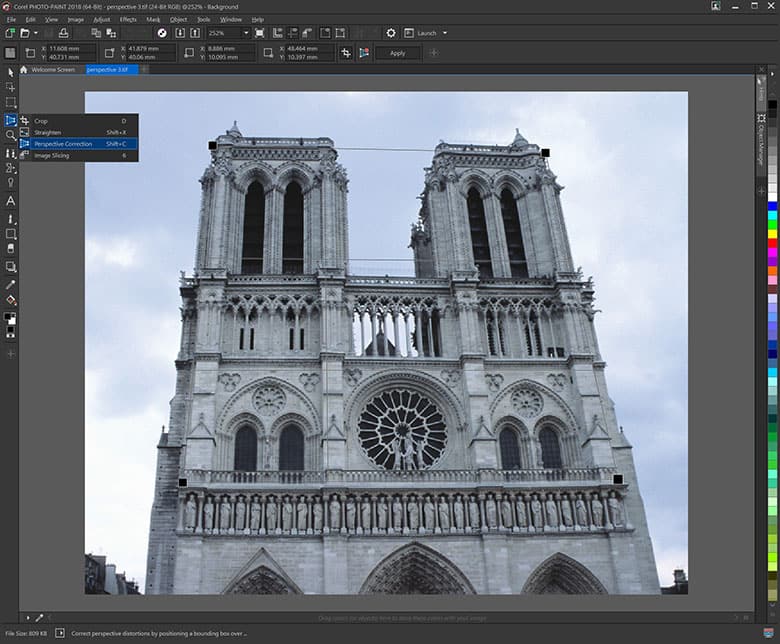
Best Editing Software for Correcting Three Point Perspective Distortion
I’ve been shooting architecture for over a decade, and I can tell you the exact moment most people realize they’ve got a problem. You’re standing on a narrow street in Manhattan, tilting your camera up to capture a full skyscraper, and you nail the shot. Then you pull it up on screen. The building looks like it’s about to topple backward into the Hudson River. That’s three point perspective distortion staring you right in the face.
It’s not a bug. It’s how physics works. But you don’t have to live with it. Over the years, I’ve tested dozens of tools for this specific task, and I’ve settled on a short list of software that actually understands how to fix these converging lines without making your image look like a melted Salvador Dali painting.
Let’s get one thing straight: not all software handles this the same way. Some give you surgical precision. Others offer a one-click fix that’s perfect for speed. And some… well, some will just warp your edges into oblivion. Here’s what works, what doesn’t, and why you need to care about the difference.
The Pro’s Toolkit: When Only The Best Will Do
If you’re charging clients for architectural work, you don’t mess around. You need perspective correction tools that handle the math behind the lens, not just slap a filter on it. In my studio, the heavy lifters are Capture One Pro and DxO ViewPoint. They’re not cheap, but they’re worth every penny when a client is staring at a $10,000 renovation shoot.
Capture One Pro has a dedicated keystone tool that many people overlook. It’s tucked under the lens correction tab, but once you find it, you can adjust vertical and horizontal sliders independently. The killer feature here? You can apply the correction to the whole layer stack without destroying your color grading. Seriously. No other tool respects your edits in the same way.
Then there’s DxO ViewPoint. This little beast is built from the ground up for this exact problem. It uses lens-specific profiles to understand exactly how your glass distorts the image, then applies a volumetric correction that mimics a tilt-shift lens after the fact. It’s eerie how good it is. You can even fix perspective issues on a single object in a scene while leaving the rest untouched. That’s insane.
Why Professional Tools Cost Real Money
Three-point perspective isn’t just about straightening a fence line. It’s about preserving the image quality when you stretch pixels into a new shape. Cheap software just pushes pixels around. You lose resolution. You get jagged edges. You introduce weird artifacts at the corners. Pro software uses interpolation algorithms that anticipate the stretch and recalculate the pixel data on the fly.
I once tried to rush a project using a free tool. The building lines came out straight, sure. But the windows looked like they were melting. I had to reshoot the entire property. That’s the hidden cost of using the wrong tool for three point perspective distortion correction.
Another thing: pro software handles batch processing. If you’re correcting 200 images from a real estate walkthrough, you don’t want to manually drag sliders on every single frame. Capture One lets you sync corrections across an entire set. It’s a massive time saver, and time is literally money in this industry.
The Workflow Difference Nobody Talks About
Most photographers stop at the single-image fix. But if you’re delivering a panorama or an interior composite, you need consistent perspective correction across every frame. I’ve seen people correct one image, then stitch it to an uncorrected image, and wonder why the building looks like a funhouse mirror. You have to lock the correction values.
DxO ViewPoint allows you to save custom presets for specific camera angles and focal lengths. So if you always shoot at 24mm on a Sony A7R, you can save that exact keystone correction and apply it to every shot from that setup. It’s a workflow philosophy, not just a feature.
And look—if you’re working with architecture photography, you also have to think about the optical distortion from your lens. barrel distortion and perspective distortion compound each other. Pro tools correct both layers simultaneously. That’s the difference between a fix that looks natural and one that screams “I edited this.”
The Swiss Army Knife: Photoshop and The Camera Raw Filter
Let’s talk about the tool everyone already has access to: Photoshop. Specifically, the Camera Raw Filter inside Photoshop. This is the middle ground between expensive pro software and free apps. It’s not as surgical as DxO, but it’s incredibly competent if you know the tricks.
The secret is to use the Transform panel inside Camera Raw, not the legacy Free Transform tool that lives in the main interface. The Transform panel gives you five automatic correction modes, plus manual sliders for vertical, horizontal, and rotation. I use “Level” and “Auto” almost never. Instead, I go straight to the “Guided” mode and draw two vertical lines along the building edges.
Here’s the catch: Photoshop assumes you want to keep the entire frame. If you tilt the camera up, the correction will pull the bottom corners in and create white gaps. You have to crop those out later. Plan for a 15-20% loss in image area when using this method. Honestly? That’s fine for most use cases. But if you need every single pixel because you’re printing billboard size, you need the pro toolkit.
Using Adaptive Wide Angle Filter for Extreme Cases
There’s another hidden gem in Photoshop: the Adaptive Wide Angle filter. Nobody talks about it. It’s buried under the Filter menu under Distort. This filter was designed for fisheye lenses, but it works miracles on extreme three point perspective distortion from ultrawide rectilinear lenses. You can set the focal length and camera crop factor, then draw constraint lines along the edges. It unwraps the distortion mathematically.
I used this on a shoot inside a cathedral where I had to point the camera almost 60 degrees upward to capture the dome. The pillars looked like they were bending inward. The Adaptive Wide Angle filter fixed it in three minutes flat. It’s not perfect—it can introduce curved artifacts on the edges if you push it too far—but it’s a legitimate tool in the arsenal.
One note: this filter works best when you shoot in RAW. JPEG files have already baked in some lens corrections, and the filter can double-fix things and create a weird rubbery look. Always apply it on the clean RAW file before any color grading.
When To Use The Manual Perspective Transform
Sometimes the automatic tools just don’t understand the image. Maybe you have a complex rooftop with multiple planes. Maybe you’re correcting a reflection in a window. In those cases, you have to go fully manual. Use the standard Edit > Transform > Perspective tool, and pull the corners manually. It’s tedious. It takes practice. But it gives you absolute control.
The trick here is to use a reference grid. Turn on the grid overlay (Ctrl + ’ ) and align your building edges to the grid lines. This prevents your eyes from being fooled by optical illusions. I’ve seen people “fix” a building’s perspective only to make it look like the building is leaning the other way. The grid doesn’t lie.
And for God’s sake, don’t use the Scale tool to fix perspective. That’s not what it’s for. Stretching the top of the image wider doesn’t correct the distortion—it just makes the top look fat. You need to shear the pixels, not stretch them.
The Underdog: Affinity Photo’s Live Perspective Tools
I’m not going to pretend that Affinity Photo dominates the professional market, because it doesn’t. But for the price of a dinner out, you get a perspective correction tool that rivals Photoshop in key areas. Affinity’s live perspective filter is something Adobe hasn’t matched yet.
What does “live” mean here? It means you can apply the perspective correction as a non-destructive layer. You can tweak the slider, close the image, come back a month later, and readjust the correction without ever damaging the original pixels. That’s huge for people who are still learning or who shoot in unpredictable conditions.
Affinity also handles the “plane” concept better than most. You can define a rectangular object in the scene—like a door or a window—and tell the software, “This rectangle is supposed to be a perfect square.” The software then recalculates the three point perspective distortion across the entire scene based on that reference. It’s almost AI-like in its intelligence.
The Batch Processing Gap
Affinity’s weak spot is batch processing. It exists, but it’s clunky compared to Capture One. If you’re a working pro shooting 500 images per day, Affinity will slow you down. For everyone else—enthusiasts, part-time shooters, graphic designers—it’s more than sufficient.
One more advantage: Affinity doesn’t require a subscription. That alone makes it the best choice for many readers who are sick of paying Adobe every month for tools they use once a quarter. You buy the software once, you own it forever. For a perspective correction tool that you might only need ten times a year, that financial model makes a lot of sense.
Mesh Warp For Complex Scenes
Affinity also has a mesh warp tool that Photoshop only offers in a limited form. Instead of just straightening lines, you can push and pull specific areas of the image to correct distortion caused by a curved lens. Think of it like a grid of pins that you can move independently. If you have a building with a curved facade that also has three-point perspective issues, mesh warp lets you fix both at the same time.
This is advanced stuff. You don’t need it every day. But when you do need it, it’s a lifesaver. I used mesh warp to correct a storefront window reflection that had both perspective and spherical distortion. Couldn’t have done it with sliders alone.
The “Set It And Forget It” Option: DxO PureRAW and ViewPoint 4 Integration
Here’s a workflow hack that changed my life. DxO PureRAW has a feature called Volume Correction that automatically corrects optical distortion and geometric distortion before the image ever enters your editor. And ViewPoint 4 integrates directly into PureRAW. So you can demosaic your RAW file, remove lens distortion, correct perspective, and denoise the image all in one step.
The result is a DNG file that’s basically pre-edited. You open it in Lightroom or Capture One, and the building is already straight. No sliders to pull. No math to do. It’s like having a tilt-shift lens built into your processing pipeline. For real estate photographers who shoot hundreds of images per week, this is the ultimate time-saver.
There’s a catch: PureRAW only supports certain cameras and lenses. You need to check their compatibility list before you buy. But if your gear is supported, the correction is near-perfect. I’ve compared the results to actual tilt-shift lens shots, and honestly? The software version is 95% as good at a fraction of the hardware cost.
The Cost-Benefit Analysis of Automated Workflows
Should you automate your perspective correction? It depends on your volumes and your standards. If you’re shooting for your personal portfolio, manual correction with sliders is fine. If you’re delivering images to a client who expects consistency across 200 photos, automation is non-negotiable. The human eye fatigues. The software doesn’t.
I once missed a crooked horizon line in 40 images because I was tired at 2 a.m. The client noticed. I had to re-deliver the entire batch. Now I use ViewPoint 4 with a preset for every job. The machine doesn’t get tired at 2 a.m.
Automation also handles the edge case where you’re shooting handheld with a variable-angle camera. If each shot has a slightly different tilt, manual correction becomes a nightmare. Automated tools analyze each frame independently and apply the correct transformation. That’s something you can’t replicate with a single slider setting.
Common Pitfalls When Correcting Three Point Perspective Distortion
Let me save you some pain. The most common mistake people make is overcorrecting. They get the vertical lines perfectly parallel, and then the image looks flat and artificial. Real perspective is a thing. When your eyes look up at a building, they see some convergence. If you completely remove all convergence, the image feels unnatural, even if the lines are “correct.”
Rule of thumb: leave about 3 to 5 percent of the original convergence intact. Your brain will register the image as “corrected but natural.” I call it the “enough to be straight, not so straight it’s weird” zone. It’s not a scientific measurement; it’s a feel thing.
Another pitfall: ignoring the vertical lines on the left and right sides of the frame. Many editors focus on the center subject and forget that the edges are also converging. Check the entire frame, especially the corners. If you correct the center and leave the edges to warp, the final image will look like it’s on a curved surface.
Losing Resolution and Cropping Smartly
Every perspective correction costs you resolution. The pixels get stretched, and the areas that were pulled inward become gaps that need cropping. The Golden Rule is to always shoot wider than you need. If you compose tightly in camera, you’ll have no room to crop after correction. Leave 20 percent extra space around your subject. You’ll thank me when you open the software.
Some software offers “automatic crop” after correction. DxO ViewPoint does this well. Lightroom does it poorly—it crops too aggressively. I disable automatic crop and crop manually to preserve the composition. Yes, it takes an extra 10 seconds per image. Yes, it’s worth it.
Also, remember that digital perspective correction creates interpolation artifacts at the extreme edges. If you’re printing large, inspect the corrected image at 100% zoom. If you see pixelation or color shift near the edges, you need to start with a higher resolution image or use a different correction method.
The Temptation To Fix Everything In Post
Look—I love software as much as the next editor. But the best approach to three point perspective distortion is still to avoid it in camera. Use a tilt-shift lens if you can afford one. Shoot from a higher elevation to reduce the angle. Keep your camera level whenever possible. Post-processing should be the safety net, not the primary solution.
That said, we don’t always have the luxury of ideal conditions. Sometimes you’re on a tight street. Sometimes you have an ultrawide lens because that’s all you have. That’s why this software exists. Use it wisely. Use it sparingly. And always keep a backup RAW file before you start distorting pixels.
Common Questions About Best Editing Software for Correcting Three Point Perspective Distortion
Can I fix three point perspective distortion in Lightroom?
Yes, but only partially. Lightroom’s Transform panel handles vertical and horizontal perspective well, but it struggles with extreme three-point scenarios where both the height and width are converging toward two different vanishing points. You’ll need to use the Guided mode and manually draw the lines. It works, but it’s less precise than Capture One or DxO ViewPoint for this specific task.
Is there any free software that does this well?
GIMP has a perspective tool, but it’s clunky and doesn’t handle interpolation well. RawTherapee offers basic keystone correction, but it’s not designed for three-point situations. Honestly, free software will get the lines straight, but you’ll lose significant resolution and image quality. If you’re doing this professionally, invest in DxO ViewPoint or Capture One. For occasional use, GIMP with careful manual work can suffice.
Does correcting perspective distortion affect the depth of field or bokeh?
No, it doesn’t. Perspective correction is a geometric transformation that moves pixels, not a lens adjustment. Your bokeh balls will remain exactly where they were in the original file. However, if you’re using a tilt-shift lens in camera, the plane of focus changes—that’s a separate mechanism. Post-processing correction doesn’t alter focal points.
How much image quality do I lose with aggressive perspective correction?
You can lose anywhere from 10 to 30 percent of your effective resolution depending on the software and the severity of the correction. DxO ViewPoint preserves more quality than Adobe Camera Raw because it uses lens-specific profiles to interpolate pixels. If you’re correcting a 50-degree upward tilt on a 42-megapixel image, expect the final corrected crop to be around 30 to 34 usable megapixels. Always start with the highest resolution you can.
Can I use this software on JPEGs or does it require RAW files?
You can use it on JPEGs, but the results are worse. JPEGs have already compressed pixel data, so stretching and interpolating them creates artifacts faster. RAW files give the software more data to work with during the transformation. If you’re serious about perspective correction, shoot RAW every time. For quick social media fixes, JPEG correction is fine as long as you don’t zoom in too much.